
2. Get around in Discord
The short version
Section titled “The short version”Discord on a phone has three main areas. Swipe left or right to switch between them. Once you know where each one is, the rest is just reading and tapping.
Just want the channel list? Jump to What each channel is for.
What FAYDTA looks like
Section titled “What FAYDTA looks like”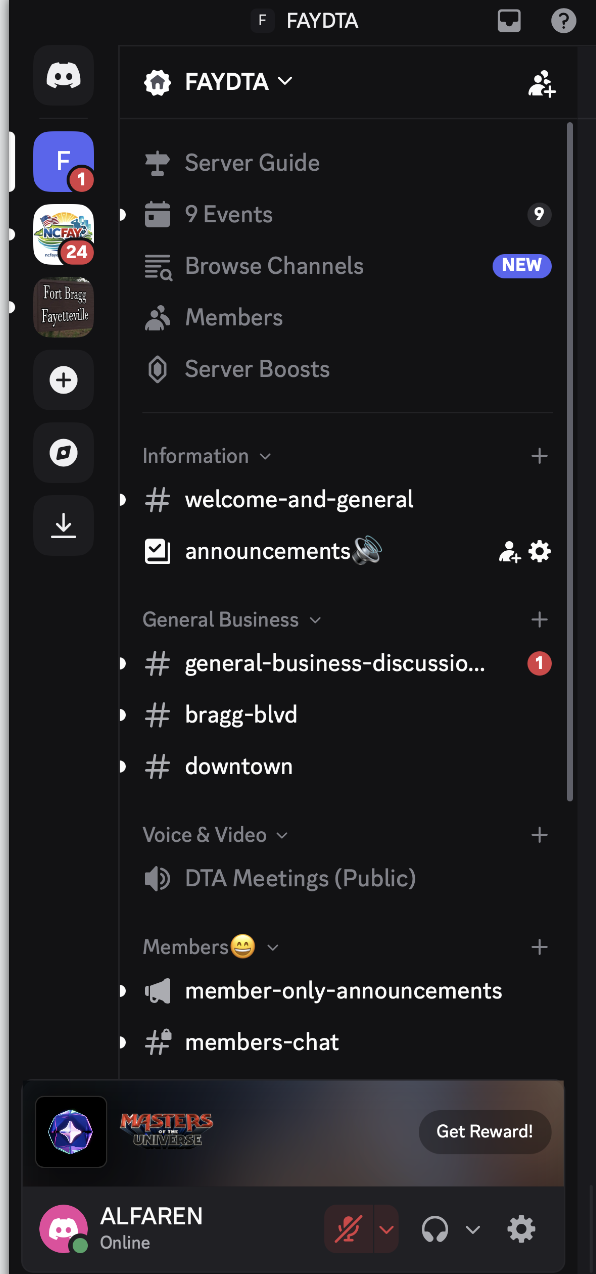
That’s the FAYDTA server. The icons running down the far left are all the Discord servers you’re a part of. The middle column is the list of channels inside whichever server you tapped. Down the bottom is your own account.
If your screen looks different from this, that’s normal — Discord looks slightly different on small phones (the columns stack instead of sitting side by side). The same things are there, just collapsed.
The three areas to know
Section titled “The three areas to know”When you open Discord on your phone and tap into the FAYDTA server, you’ll see three views:
| Area | What it shows | Like Facebook… |
|---|---|---|
| Servers list (far left) | All the Discord groups you’re in. FAYDTA is one of them. | The Groups list |
| Channels (middle) | Different conversations inside FAYDTA. Each one has a # symbol. |
The topics inside a Group |
| Members (far right, swipe to see) | Everyone else in the FAYDTA server. | The members list of a Group |
Tip: If you see a screen and don’t know where you are, tap the three-line menu (≡) in the top-left corner. That always takes you back to the main view. Discord shows this icon as three short horizontal lines stacked on top of each other.
What each channel is for
Section titled “What each channel is for”Once you’re in FAYDTA, here are the channels and what each one is for. (The names in bold with a # in front are channels you can tap to enter.)
Open to everyone
Section titled “Open to everyone”- #welcome-and-off-topic — Say hi, ask anything. Good place to start.
- #announcements — Bulletins from the DTA board. Read-only — only the board can post.
- #downtown — Talk specific to the Hay Street / downtown corridor.
- #bragg-blvd — Talk specific to Bragg Boulevard businesses.
- #general-business-discussions — Anything that’s about all of downtown.
Members only
Section titled “Members only”These only show up after you link your account:
- #members-chat — Private discussion for paying DTA members.
- #member-only-announcements — Member-only bulletins.
Board only
Section titled “Board only”If you’re on the DTA board, you’ll see a few extra channels for board business.
Reading a channel
Section titled “Reading a channel”- Tap the channel name (like #welcome-and-off-topic).
- Messages appear with the newest at the bottom — same as text messages.
- To scroll back in time, swipe down through the message list.
- To read newer messages, scroll back up.
Posting a message
Section titled “Posting a message”- Tap inside the text box at the bottom of the channel.
- Type your message.
- Tap the paper airplane icon to send.
That’s it. You don’t need to format anything. Type like you would in a text message.
Direct messages (DMs)
Section titled “Direct messages (DMs)”DMs are private one-on-one or small-group conversations. They’re the equivalent of Facebook Messenger.
To find your DMs on a phone:
- Tap the three-line menu (≡) in the top-left to open the side panel.
- At the very top of the server list (far left column), tap the purple speech-bubble Discord home icon. This is your “home” — outside of any server.
- You’ll see a list of any DMs you have. Tap one to read it.
The FAYDTA bot will DM you the welcome message when you join. That’s normal — it’s not a real person, just an automated note from the board.
Getting back to FAYDTA
Section titled “Getting back to FAYDTA”Once you’ve checked DMs, to get back to FAYDTA:
- Tap the three-line menu (≡) in the top-left if the side panel isn’t already showing.
- Tap the FAYDTA server icon (the purple F in the server list on the left).
The bottom row of buttons
Section titled “The bottom row of buttons”At the bottom of the Discord app, there are usually four buttons:
| Button | What it does |
|---|---|
| Servers | Shows all the Discord groups you’re in |
| Messages | Your direct messages |
| Mentions | Anywhere someone tagged you with @ — the most important inbox |
| You | Your profile and settings |
The Mentions button is the one to check most often. Anytime someone tags you with @your-name, it shows up there. You won’t miss it even if you’ve muted the whole server.
What’s next
Section titled “What’s next”Now that you can move around, the next step is to link your faydta.com account so Discord knows you’re a member.
Next: 3. Link your faydta.com account →
If you get stuck
Section titled “If you get stuck”- Can’t find a channel mentioned above? You may need to link your account first — some channels only appear for members.
- Can’t find the three-line menu (≡)? It only appears on phone-sized screens. On a tablet or computer, the side panels are always visible — so there’s nothing to expand.
- App looks different from the screenshot? Discord updates often. The names of buttons stay roughly the same; the icons sometimes move. Contact the board if you can’t find something.
- Want help in person? Mention “Discord help” when you contact the board — we’ll sit with you at the next meeting.